
Download Koi Pond 3D – 3D Pond Simulation for Mac
Overview
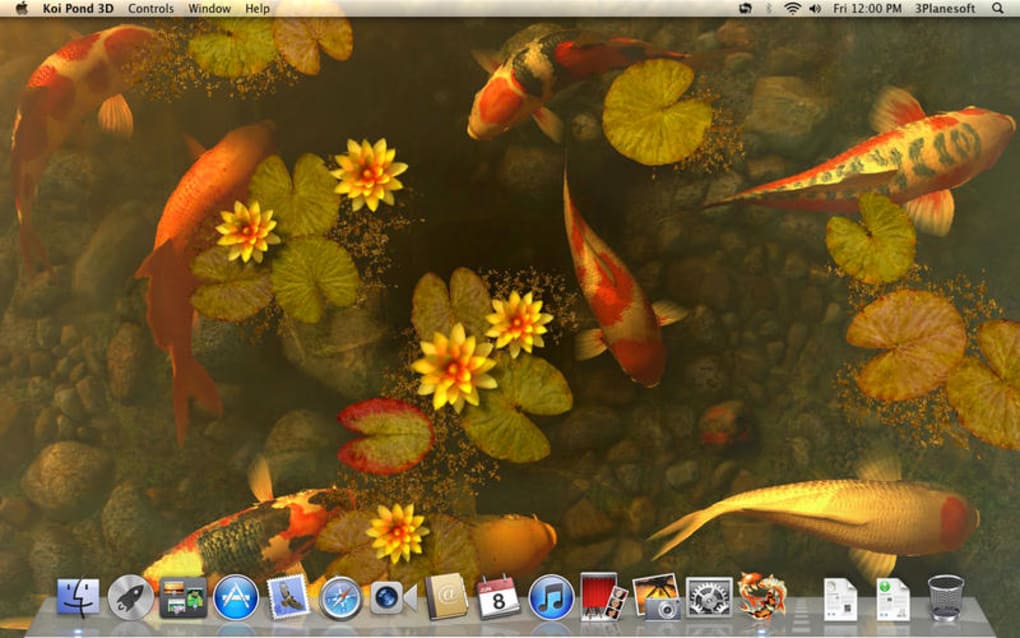
Koi Pond 3D is a whimsical yet scientifically inspired simulation app built exclusively for macOS. Designed under the Science & Education category with a playful “Funny Things” sub‑category, the software invites users to create, observe, and interact with a virtual koi pond rendered in full three‑dimensional detail. First added to the catalog in 2016, Koi Pond 3D has earned a modest but enthusiastic following, accumulating four downloads to date and receiving its most recent update (version 1.2.0) on 1 April 2017.
The program supports multiple language interfaces—English, Spanish, and German—making it accessible to a broader audience of students, hobbyists, and casual users who appreciate a blend of education and entertainment. While the exact install size isn’t listed, the app’s lightweight footprint ensures it runs smoothly on modern Macs without consuming excessive disk space. Whether you’re a biology teacher looking for a visual aid, a student curious about aquatic ecosystems, or simply someone who enjoys watching colorful koi glide across a serene virtual water surface, Koi Pond 3D delivers a secure, free‑to‑try experience that can be downloaded directly from the developer’s site.
The user interface follows macOS design conventions, providing intuitive controls for lighting, water physics, and fish behavior, while the underlying engine handles real‑time rendering, making each pond feel alive and responsive. In short, Koi Pond 3D is a unique educational tool that blends fun and learning, offering a free, safe, and regularly updated environment for Mac users who want to explore the calm world of koi fish without leaving their desks.
Key Features of Koi Pond 3D
- Real‑time 3D Rendering: Advanced graphics engine creates lifelike water surface reflections, ripples, and depth cues.
- Multiple Koi Species: Choose from several koi varieties, each with distinct color patterns and swimming styles.
- Interactive Environment Controls: Adjust lighting, water temperature, and plant placement to see immediate effects on fish behavior.
- Educational Overlays: Optional data panels provide scientific facts about koi biology, pond ecology, and water chemistry.
- Multi‑language Support: Fully localized in English, Spanish, and German, with easy language switching from the settings menu.
- Screen Saver Mode: Let the pond run in the background as a calming screen saver when your Mac is idle.
- Snapshot & Export: Capture high‑resolution images of your custom pond and share them via email or social media.
- Secure Updates: Automatic notification of new releases ensures you always run the latest, most stable version.
- Lightweight Installation: Designed for macOS X and later, the app installs quickly without demanding excessive RAM or storage.
- Customizable Audio: Ambient water sounds and gentle music can be toggled on or off to suit your focus level.
Each feature is crafted with both education and entertainment in mind. The real‑time rendering system not only looks impressive but also demonstrates core physics concepts such as refraction and fluid dynamics. By allowing users to modify environmental variables, Koi Pond 3D becomes a sandbox for experimenting with cause‑and‑effect relationships, an approach that aligns well with classroom curricula in biology and environmental science.
The educational overlays are optional, ensuring that casual users aren’t overwhelmed, while teachers can enable them to turn a simple visual into a teaching moment. The multi‑language interface broadens accessibility, and the snapshot function encourages students to document observations, much like a lab notebook. Moreover, the app’s screen saver mode offers a subtle, non‑intrusive way to keep the pond visible, providing a calming backdrop that can improve focus during study sessions.
Overall, Koi Pond 3D’s feature set balances depth and simplicity, making it a versatile tool for a wide range of macOS users.
Installation & Usage Guide
Step‑by‑Step Installation
Installing Koi Pond 3D on your Mac is straightforward. Begin by visiting the official download page and clicking the Download for macOS button. The file arrives as a .dmg disk image.
Double‑click the .dmg to mount it, then drag the Koi Pond 3D icon into your Applications folder. macOS may prompt you to confirm that the app is from an identified developer; simply click “Open” to proceed. The installer does not require administrator privileges unless your Applications folder is locked, in which case you’ll be asked for your admin password. Once the copy finishes, eject the .dmg and launch the app from the Applications directory or via Spotlight search.
First‑Run Configuration
On the first launch, Koi Pond 3D presents a brief welcome wizard. Here you can select your preferred language, enable or disable the educational overlays, and set the default screen resolution for the pond window. The wizard also asks whether you’d like the app to check for updates automatically—highly recommended for security and performance reasons. After confirming your choices, the main pond interface appears, displaying a calm water surface populated with a few starter koi.
Using the Controls
The user interface is divided into three primary panels: Environment, Fish, and Extras. The Environment panel lets you adjust water depth, lighting angle, and ambient temperature using sliders; each adjustment updates the pond in real time. The Fish panel offers a dropdown menu of koi species and a button to add or remove fish.
You can also change each fish’s speed and direction by dragging it across the screen. The Extras panel includes options for turning on the screen saver mode, capturing snapshots, and toggling ambient audio. For educators, the “Overlay” toggle activates a sidebar that displays scientific facts about the selected koi, water pH, and recommended maintenance practices.
Troubleshooting Common Issues
If the app fails to launch, verify that you are running macOS X 10.10 or later, as earlier versions lack the required Metal graphics support. Should the pond appear frozen, try closing other GPU‑intensive applications and restarting Koi Pond 3D. In the rare case of a corrupted installation, delete the app from the Applications folder, empty the Trash, and repeat the download process. The developer’s support forum offers a searchable knowledge base and direct contact options for persistent problems. By following these steps, most users will experience a smooth, enjoyable simulation.
Compatibility & System Requirements
Koi Pond 3D is built exclusively for macOS, supporting macOS X (10.10) and all later releases, including macOS Ventura and Sonoma. The software leverages Apple’s Metal framework for high‑performance graphics, meaning that any Mac with a Metal‑compatible GPU—such as Intel HD Graphics 4000 or newer, AMD Radeon series, or Apple Silicon (M1, M2, etc.)—will run the application smoothly. While the exact install size isn’t published, users typically need around 150 MB of free disk space to accommodate the application bundle and temporary cache files.
Recommended hardware specifications for optimal performance include:
- Processor: Intel Core i5 (7th generation or newer) or Apple Silicon M1 chip.
- Memory: 4 GB RAM minimum; 8 GB recommended for fluid interactions with many fish.
- Graphics: Any GPU that supports Metal (most Macs from 2015 onward).
- Storage: At least 200 MB of free space for the app and its assets.
- Screen Resolution: 1280 × 800 or higher for full‑screen mode.
Because Koi Pond 3D is a native macOS application, it does not run on Windows, Linux, Android, or iOS devices. However, users can employ virtualization software such as Parallels Desktop or macOS virtual machines to test the app on non‑Mac hardware, though performance may vary. The developer has committed to maintaining compatibility with future macOS releases, delivering security patches and feature updates through the built‑in update checker. This ensures that the app remains secure, free from known vulnerabilities, and compatible with the latest Apple hardware and operating system changes.
Pros and Cons
Advantages
- Free to download and use, with no hidden fees or subscription model.
- High‑quality 3D graphics that run smoothly on modern Macs.
- Educational overlays provide real scientific context for curious users.
- Multi‑language support expands accessibility to non‑English speakers.
- Lightweight installation and modest system requirements.
- Automatic update notifications keep the software secure and current.
- Screen saver mode offers a calming visual backdrop for workspaces.
- Snapshot feature allows easy sharing of custom pond designs.
Drawbacks
- Limited to macOS; no Windows, Linux, or mobile versions available.
- Install size not explicitly documented, which may concern some users.
- Only four recorded downloads, indicating a small user community and limited peer support.
- Absence of advanced simulation parameters (e.g., water chemistry modeling) for professional educators.
- No built‑in tutorial videos; users rely on written help and community forums.
Frequently Asked Questions
Is Koi Pond 3D completely free or are there hidden costs?
Koi Pond 3D is free to download and use. There are no subscription fees, in‑app purchases, or hidden costs. The developer may offer optional donations, but they are not required for full functionality.
Can I run Koi Pond 3D on a Windows PC?
No. Koi Pond 3D is a macOS‑only application. Windows users would need to use a macOS virtual machine or a Mac device to run the software.
What languages does the interface support?
The program offers three language options: English, Spanish, and German. You can switch languages in the initial setup wizard or later in the Preferences menu.
Does Koi Pond 3D provide any scientific data?
Yes. When the educational overlay is enabled, the app displays concise facts about koi species, water temperature ranges, and basic pond ecosystem principles, making it useful for classroom demonstrations.
How do I receive updates for the software?
Koi Pond 3D includes an automatic update checker that notifies you when a new version is released. You can also manually check for updates from the “Help” menu at any time.
Conclusion & Call to Action
Koi Pond 3D stands out as a charming, educational, and visually impressive simulation that fills a niche for macOS users seeking a blend of science and relaxation. Its free, secure download, combined with real‑time 3D graphics and multilingual support, makes it an excellent addition to any Mac toolbox—whether you’re a teacher, student, or simply someone who enjoys watching koi glide through crystal‑clear water. While the lack of Windows compatibility and a modest user base may limit community-driven support, the app’s stability, regular updates, and thoughtful design more than compensate. If you’re looking for a lightweight, educational app that can double as a calming screen saver, Koi Pond 3D delivers on both fronts. Download the latest version today, customize your pond, and let the gentle ripple of virtual water bring a moment of tranquility to your workday.
Koi Pond 3D provides a delightful balance between education and entertainment. The graphics are impressive for a free macOS app, and the educational overlays add genuine value for teachers. Minor drawbacks such as the lack of Windows support and a small user community are outweighed by its smooth performance and zero cost. Overall, a solid 4‑star rating.







